A faded family photo may look beyond repair, but many problems can be improved. The right method depends on the damage: low contrast is different from a deep crease, and a tiny scan is different from a high-resolution original. This guide explains five realistic options, starting with the source image itself.
Start with the cleanest scan you can make, save an untouched copy, correct the overall tone, then repair individual defects. Use AI restoration as an additional option, not as a substitute for reviewing the result.
1. Make a better scan before editing
Gently dust the photograph with a suitable soft brush, without rubbing fragile or flaking areas. Scan it flat at a resolution that retains the original detail. For a small print, 600 dpi can be a useful starting point; very large scans are not automatically better if the print has little detail. If you only have a phone, place the photo in even, glare-free light and hold the camera parallel to it.
Save a high-quality original, ideally PNG or TIFF if you plan to edit repeatedly. Keep a second copy for experiments. If the only source is a compressed image sent through a messaging app, ask whether a better original exists before spending hours trying to reconstruct missing detail.
2. Correct brightness, color and contrast
Open the image in an editor with exposure, levels or curves controls. Start with small adjustments: lift dark areas without flattening shadows, reduce unwanted color casts and avoid clipping highlights. For yellowed color prints, neutral areas such as a white shirt or wall can help you judge the color balance.
Fixing overall tone often makes a surprisingly large difference. Make the correction before detailed scratch removal so you can see what actually needs repair.
3. Repair scratches and dust manually
Use a healing brush for small specks and a clone tool for longer scratches where the surrounding texture is predictable. Work on a separate layer when your editor supports it. Zoom in to repair defects, then zoom out to check that repeated patterns or blurred patches have not become obvious.
Large tears across faces or complex backgrounds are harder. Manual editing gives you control, but accurate reconstruction can take time and may not be possible from the surviving pixels.
4. Try an online restoration service
Web-based photo tools can be convenient when you need a quick result and do not want to install software. Check the upload policy, image-retention terms, size limits and whether a full-resolution download costs extra. Think carefully before uploading irreplaceable or private family photographs.
Always compare the exported image with your original. Some services oversharpen faces or invent detail, which can change how a person actually looked.
5. Use local AI restoration on Windows
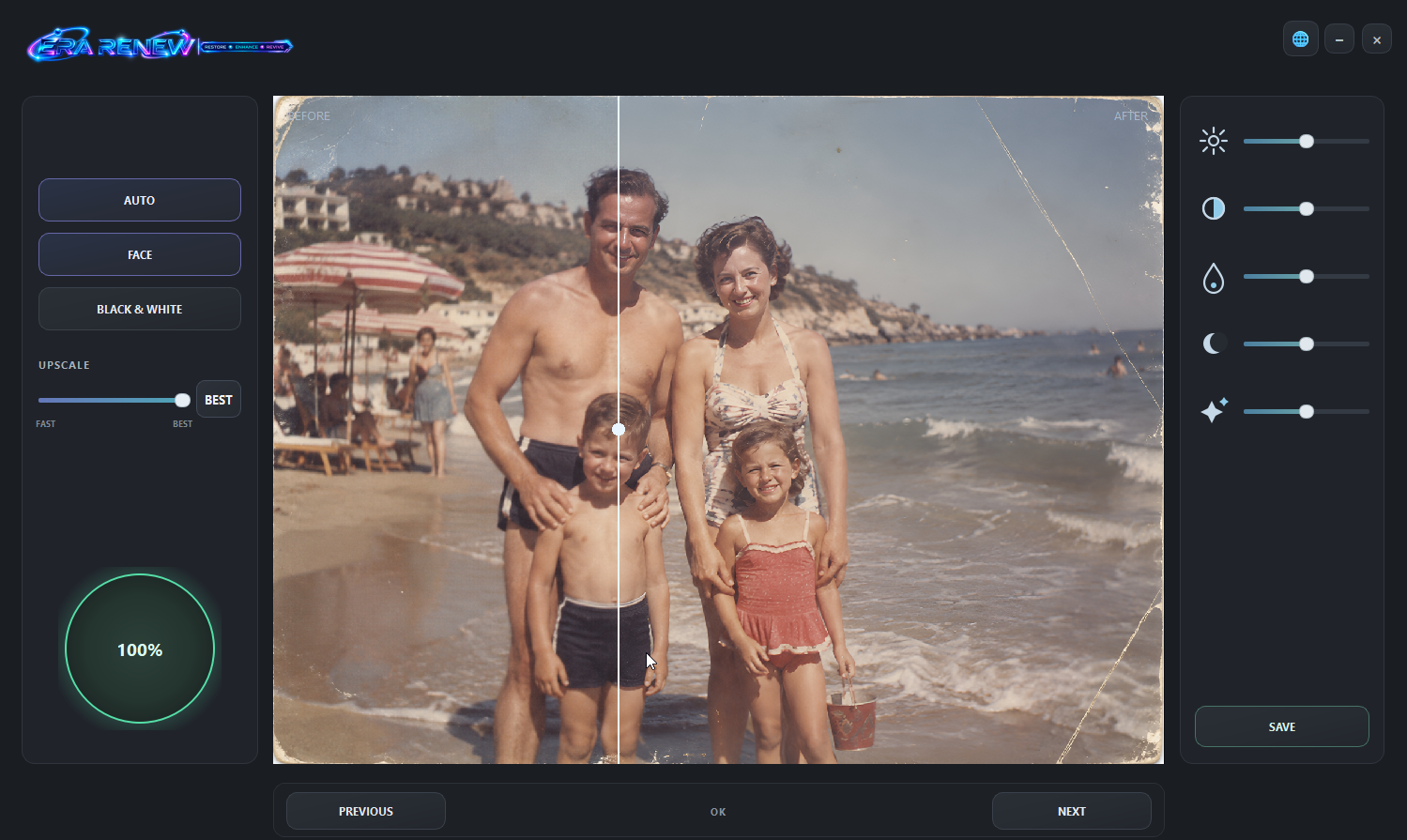
AI-assisted restoration can reduce some manual work, particularly for faded details, faces and enlargement. ERA RENEW is one Windows option with local AI restoration, face enhancement, upscaling, black-and-white processing and manual image controls. It processes photos locally rather than requiring a cloud upload for its restoration workflow.
Apply the enhancement conservatively, inspect faces at 100% zoom and compare the result side by side with the source. AI can estimate missing details, but it cannot prove that its reconstruction is historically accurate.
Common mistakes to avoid
- Editing the only copy: preserve the unmodified scan.
- Over-smoothing faces: natural skin texture matters more than an artificially perfect portrait.
- Enlarging too early: handle major tone and damage issues before final resizing.
- Ignoring physical damage: valuable originals may require a professional conservator, not software.
Frequently asked questions
Can software recover details that are completely gone?
No tool can reliably recover information that was never captured. AI may generate a plausible reconstruction, which should not be mistaken for an exact recovery.
Is black-and-white restoration different from colorization?
Yes. You can improve contrast and repair marks while preserving black and white. Adding color is a separate interpretation, not a recovery of proven original colors.
Explore ERA RENEW
One option among the methods covered above. Review the features, compatibility and trial or purchase conditions before deciding whether it fits your workflow.
See ERA RENEW details →