Not every AI image generator needs to send your prompt and image data to an online service. Local generation runs a model on your own Windows PC, which gives you a different balance of privacy, hardware requirements and speed. Here is what to check before you start and how to improve your first results.
Choose software compatible with your Windows PC, install the necessary local model, write a specific prompt, generate a first draft and refine one change at a time. Keep realistic expectations about speed and accuracy.
1. Decide whether local generation fits your PC
Local image models consume memory, processing power and disk space. The experience depends heavily on model size, resolution and whether the software uses the GPU or CPU. Check the selected application's own requirements instead of assuming any Windows laptop will deliver fast results.
Offline processing also does not always mean an internet-free installation: the installer, model files or Microsoft Store licensing may initially require a connection. Once the required components are installed, a genuinely local generation workflow should not need to send prompts to a cloud model.
2. Write a prompt with a clear subject
Start with what you actually want to see: the subject, setting, style, lighting and framing. For example: “A close-up portrait of a ginger cat beside a window, soft morning light, natural colors, shallow depth of field.”
Avoid adding twenty conflicting styles. A short, coherent prompt is often easier to improve than an enormous list of adjectives.
3. Change one variable at a time
Generate a first image, inspect it and choose the most important correction. Is the composition wrong? Change the framing. Is the background too busy? Simplify the setting. Is the light too harsh? Request softer light. Keeping most of the prompt stable makes your experiments easier to compare.
If the software supports seeds or other reproducibility controls, record them. The exact effect of those settings varies by model and application.
4. Improve details and prepare the final image
Faces, hands, written text and fine repeating patterns are common weak points in generated images. Inspect them at full size. Use enhancement or upscaling cautiously: larger pixel dimensions do not guarantee accurate new details.
For a final image, think about the intended use. A small social post needs a different aspect ratio from a desktop wallpaper or an A4 print. Save the completed image in a suitable format and keep your source prompt for later revisions.
5. Try a dedicated Windows image studio
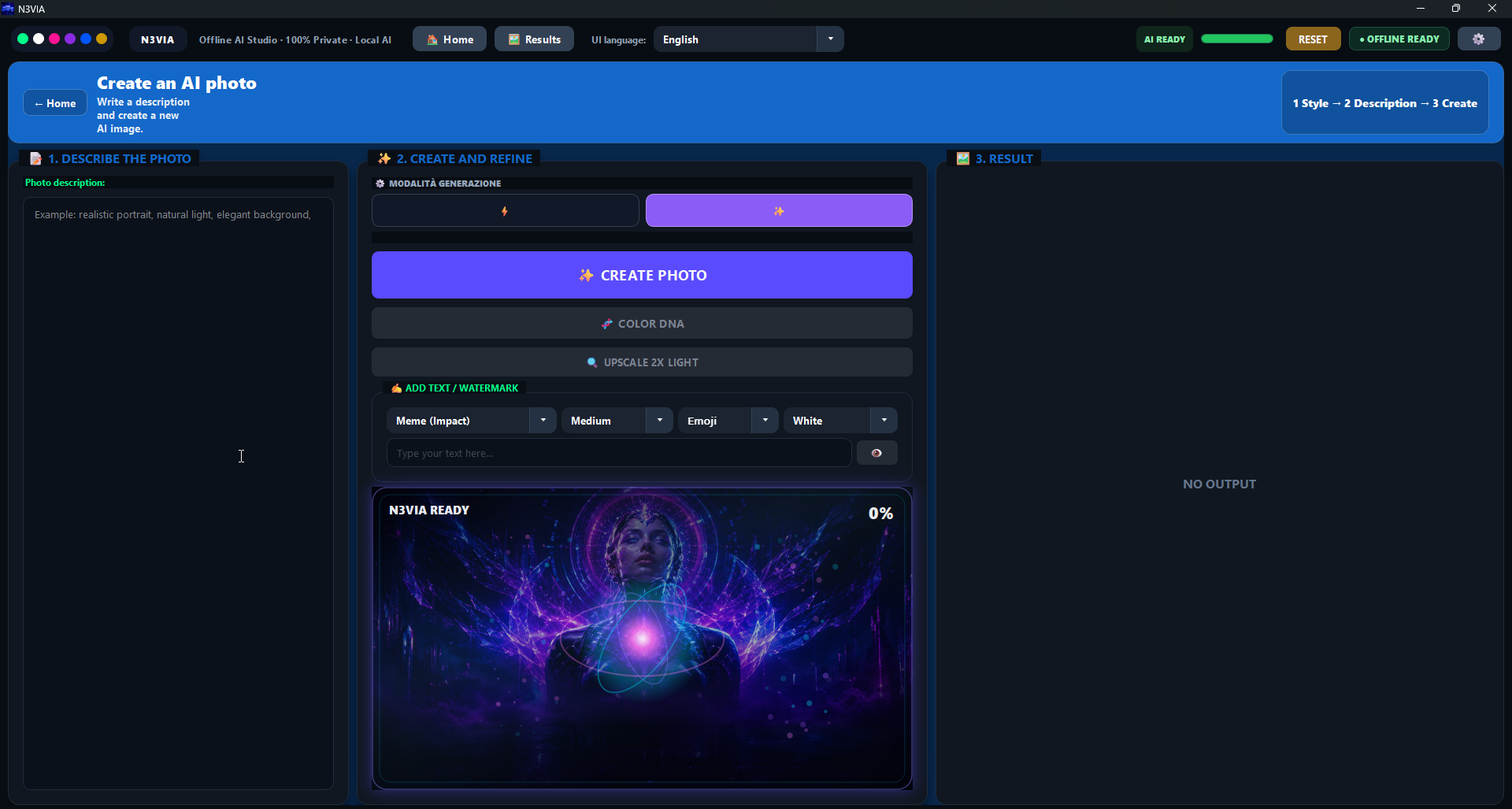
N3VIA Vision is ERA VISION AI's local AI image creator for Windows. Its listed features include portrait and scene generation, multiple visual styles, Color DNA enhancement, 2× upscaling, text and watermark tools, and a Results gallery.
Those features make it an option to evaluate if you prefer a focused Windows interface over an online prompt box. Confirm your PC meets the current requirements in the product listing before purchasing.
Privacy and responsible use
- Do not assume a generated image is historically accurate or photographically real.
- Do not impersonate real people or publish misleading material.
- Check ownership, consent and platform rules before commercial use.
- Back up the outputs you want to keep; local files can still be lost.
Frequently asked questions
Does offline generation always cost nothing?
No. You may pay for the software, models or hardware and use electricity for local processing. “Offline” describes where processing happens, not whether it has a cost.
Will AI-generated text inside an image be perfectly spelled?
Not necessarily. Use dedicated text or watermark tools when spelling and layout must be exact.
Explore N3VIA Vision
One option among the methods covered above. Review the features, compatibility and trial or purchase conditions before deciding whether it fits your workflow.
See N3VIA Vision details →