Subtitles make speech easier to follow, help when audio is unclear and can make videos more accessible. You can type them yourself, use an editor or generate a draft with speech recognition. Whichever route you choose, timing and proofreading matter more than clicking a single automatic button.
For a short clip, manual subtitles may be quickest. For long spoken videos, generate a transcript, correct it, synchronize the captions and choose between a separate SRT file or subtitles burned into the picture.
1. Write a simple SRT file yourself
An SRT file is a plain-text list of numbered captions with start and end times. Create one in a text editor and save it as UTF-8 with the extension .srt. Here is a minimal example:
1
00:00:01,000 --> 00:00:03,500
Welcome to this short tutorial.

2
00:00:04,000 --> 00:00:06,000
Let's get started.
Make sure each cue has a valid time range and leave a blank line between entries. This works well for a small number of lines, but becomes tedious for longer recordings.
2. Use the subtitle tools in a video editor
Many editors let you create captions while watching the timeline. You can listen, pause at natural speech breaks and adjust the start and end of each caption visually. This is useful when you want captions to match cuts, sound effects or changes of speaker.
Before exporting, decide whether the platform expects a separate subtitle file or text permanently visible in the video. These are different outputs.
3. Generate an automatic transcription draft
Speech-recognition software analyzes the audio and estimates the spoken words. It is especially helpful for interviews, lessons and long recordings. Clean speech usually produces better results than noisy music-heavy audio, but proper names, accents and specialist vocabulary still need review.
Check punctuation, missing words and whether captions cover the correct time span. An automatic result is a starting point, not a guarantee of accuracy.
4. Translate captions into another language
Once you have corrected the source transcript, translate the captions and read them again in context. Idioms, jokes, names and technical phrases can change meaning when translated literally. The translated line may also need to be shortened to fit the available on-screen time.
Keep a copy of the original-language captions. If the translation is wrong, it is easier to fix the source than to troubleshoot multiple derived files.
5. Generate and translate subtitles locally with AI
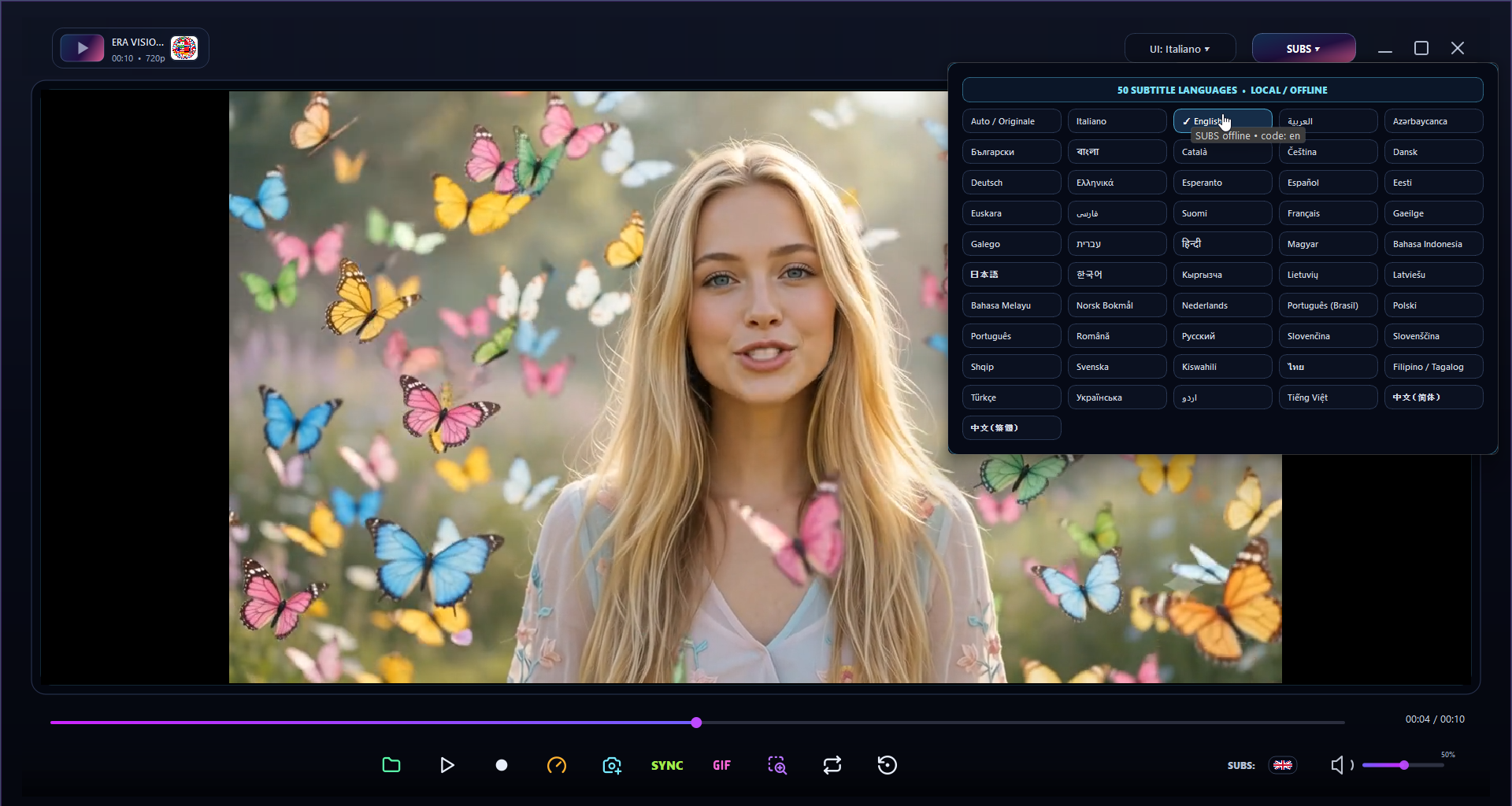
If you prefer to keep video files on your computer, ERA VISION SUBS is a Windows video player with local speech recognition, automatic subtitle generation and translation into 50 supported subtitle languages. The product is described as working without a cloud AI upload or external translation API.
Use the generated result in your workflow, then proofread it, particularly for names, overlapping speakers and technical language. Local processing improves privacy control, but it does not remove the need for quality checks.
Check your finished subtitles
- Play the video with the captions enabled from start to finish.
- Check that each caption appears when the corresponding words are spoken.
- Avoid overly long lines, abrupt cuts and captions that obscure essential visuals.
- Keep the original video and a separate copy of your subtitle file.
Frequently asked questions
What is the difference between SRT and burned-in subtitles?
SRT is a separate text file that supported players can display or hide. Burned-in subtitles are part of the exported picture and cannot be switched off.
Can automatic subtitles understand every accent perfectly?
No. Accent, sound quality, crosstalk and vocabulary affect recognition accuracy. Review important captions before publishing.
Explore ERA VISION SUBS
One option among the methods covered above. Review the features, compatibility and trial or purchase conditions before deciding whether it fits your workflow.
See ERA VISION SUBS details →